ابزار Xhorse VVDI
Xhose VVDI نرم افزار برنامه نویس اصلی و سخت افزارابزار Xhorse VVDI
Xhose VVDI نرم افزار برنامه نویس اصلی و سخت افزارHow to Bind VVDI2 VVDI Prog to Xhorse App?
Xhorse VAG MQB48 license requires your xhorse vvdi2 and vvdi prog registered to Xhorse account.
How to register and combine vvdi2/vvdi prog to Xhorse account?
The procedure can also be applied to vvdi mb tool.
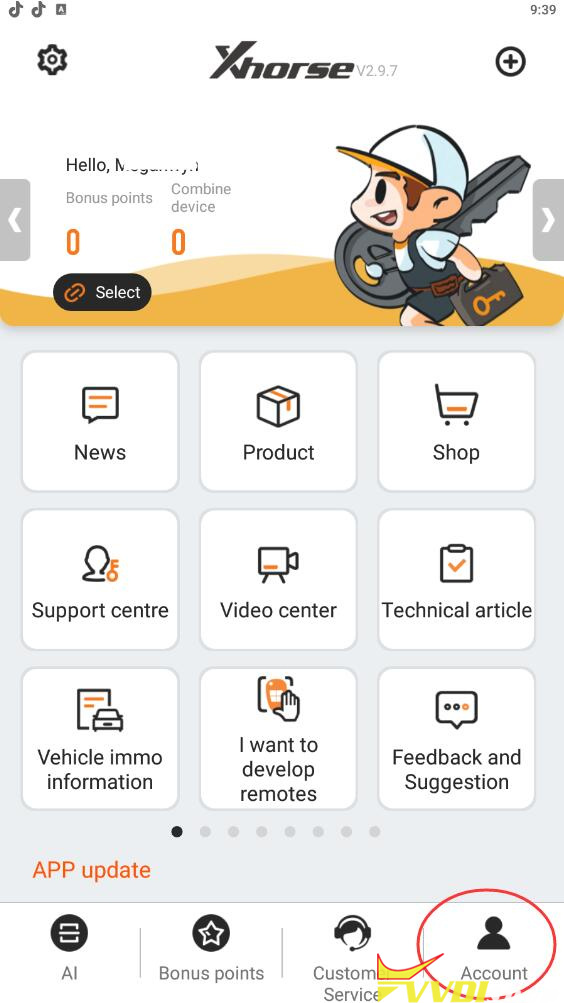
First, use the Xhorse upgrade kit to identify vvdi2 or vvdi prog, click on the Binding in the upper right corner, and it will come up with a QR code.

Then, find the cartoon character interface on the mobile APP, click on Account in the lower right corner, there is a “combind device”, click “combind device”, and scan the QR code for binding.
You can also check how many Xhorse devices you have combined here.


https://www.vvdishop.com/service/bind-vvdi2-vvdi-prog-to-xhorse-app.html
Autel IM508 Failed to Make Xhorse XS MQB Dealer Key?
Problem:
I want matching Xhorse XS MQB smart remote key to the Skoda Fabia 2016 MQB system.
Just for lock and unlock car, I can’t make it a dealer key with autel im608.
Any help please?

Solution:
Only Xhorse tools do MQB Xhorse keys.
Autel can’t make dealer key on Xhorse keys. You need aftermarket key or KD ZB version to work with Autel.
You need vvdi2 or key tool plus to make xsmqb model smart key.
First you generate the right key with key tool plus or key tool max pro then add with vvdi2/key tool plus.

Program VAG MQB48 Key with VVDI Prog and VVDI2
Xhorse released VAG MQB key programming in Feb. 2023. The function requires MQB license activation on your vvdi2 or vvdi key tool plus.
Here is the Chinese demo guide on programming MQB key by xhorse vvdi prog+ vvdi2.
Add key and all keys lost all require to read immo data with vvdi prog first.
AKL also requires sync data from third party.
NOTE: You must have vvdi prog to read immo data and upload to vvdi2.
Procedure:
You should remove the dashboard to read immo data with vvdi prog/key tool plus no matter add key or all keys lost.
Unscrew all screws and disassemble dashboard


Take out the circuit board
Locate MCU chip type

Run VVDI Prog software, select 5-Dash->VW->MQB Lock (D70F35xx)

Check wiring diagram
There are two ways to read immo data
Method 1: Lift PIN diagram
following wiring diagram to connect dash with vvdi prog via mcu v3 cable


Read immo data, the process takes about 3-5 minutes
Save data


Reinstall dashboard.
Method 2: Cut PIN diagram
Method 2 requires opening the reverse side of the circuit board.


Cut the junction with a scalpel blade and magnifying glass

Then following wiring diagram to connect dash with vvdi prog via mcu v3 cable

A white feeder wire needs to be connected to the back of the circuit board

Read and save immo data


Connect the junction and reinstall dashboard. Remove to step 2.
Connect vvdi2 with laptop. Make sure network connection is enabled.
Run VVDI2 software

Select Key Learning-> MQB platform immobilizer->Dashboard- MQB48 VDO/JCI-NEC35xx LOCK

Select Decrypt IMMO Data
Upload MQB data just read by vvdi prog


VVDI2 will decrypt immo data online, calculating online in process.
Save decrypted immo data

Now you can add key with the immo data.
For all keys lost, contact 3rd party to get sync data as well.


Done.
Xhorse BMW Motorcycle OBD Key Learning Vehicle List
Xhorse released another crazy innovation-learning motorcycle keys through an OBD diagnostic socket on Jan. 2023.
2 Major Updates:
Supports learning smart keys with xm38 motorcycle smart key
Supports chip immobilizer keys 4d+ (80 bit) transponder type required for use vvdi super transponder
Xhorse BMW Motor License Functions:
- unlock ews
- upgade original file
- read security key
- obd add key
- read key information
- read coding
- erase key
- restore coding
Compatible Xhorse tools:
Vehicle List:
C400GT
R1200
R1200R
K1600B
K1600GA
K1600GTL
F750
F850
R1250
C400X
C650GT
F750GS
K1600
K1300
C600
F800
K19

Program Xhorse ELV Emulator to W212 with VVDI MB
Problem:
We have a 2010 Mercedes E350 W212 in our shop. The steering column lock stopped operating. We purchased an ELV emulator by xhorse to use with our vvdi mb tool.

When I follow the procedure I found on multiple places, I get to the point where I read the EIS and hit ‘get’ on erase password. When I paste this result into the field above it, the password does not seem to be hashed out, rather it pastes the same value that is in the erase password field. Error “Erase EIS ……Failed”
The procedure I followed is as follows:
Step 1 – Using xhorse w204 eis cable hook up two connectors to EIS and one connector to xhorse emulator EZL.
Step 2 – Apply power source to cable
Step 3 – Hook up vvd mb
Step 4 – Load vvdi mb software
Step 5 – Read ESL using ESL TOOLS. In which case the status comes back as ‘ESL Status: Closed’
Step 6 – Read EIS using EIS TOOLS. In which case the status comes back as ‘Reading data success.- EIS is normal’
Step 7 – Click ‘get’ button beside erase pass.
As described above, I can go no further than this due to incorrect password calculation. Arguably it is not calculating a password at all.
Solution:
You doing it wrong.
You need to calculate EIS (Ignition switch) Password, and save data. After that this data has to be written is ESL ( lock) menu. Erase password has nothing to do with this.
When you hit “Get” that’s erased password AKA service password to renew eis which is needed to erase data and renew eis which even if you don’t have EIS pass you can’t do it
What you need to do is go to password calculation and calculate EIS password , like if it was a ALL LOST KEYS.
So go to password inquiries and start a reading, if you have subscription then we recommend doing All lost keys option to Get EIS password, then
Once you get password from server, copy and save it then do as following
1. Go to EIS menu
2. Read EIS data
3. Copy password in password section
4. click “get password” so you’ll have service password as well
5. Save EIS data
6. Renew eis by IR
7. Load eis data ( saved in step 5)
8. Write VIN by OBD
9. Write EIS data by IR
10. Personalize ELV emulator.
11. Stick key in and you will see it’s activated
12. Connect both to car and start it.
If you want to only use 1 token connect EIS back in car and do it like if it was a copy, when it asks if elv sync click yes,, then follow prompts.
Otherwise just wait until tokens go into your acc and do as indicated above.