ابزار Xhorse VVDI
Xhose VVDI نرم افزار برنامه نویس اصلی و سخت افزارابزار Xhorse VVDI
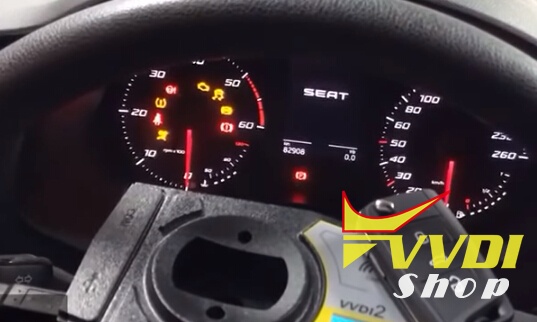
Xhose VVDI نرم افزار برنامه نویس اصلی و سخت افزارProgram Seat Leon MQB Smart Remote Key by VVDI2

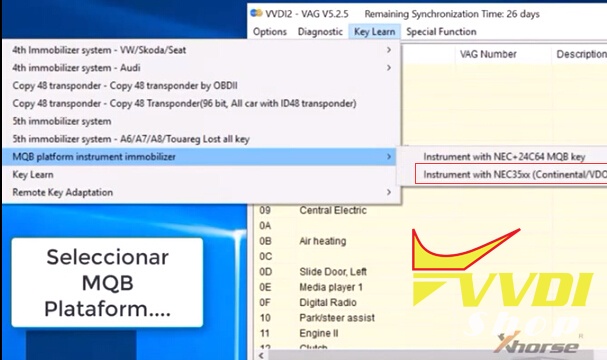
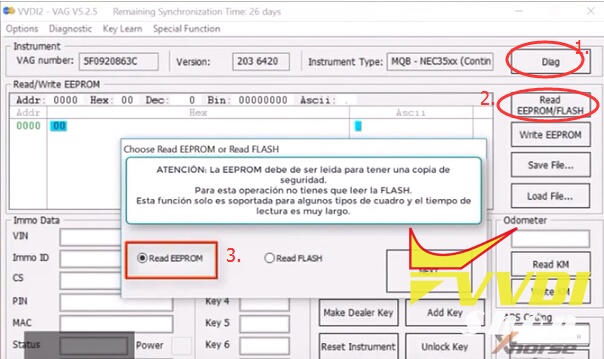
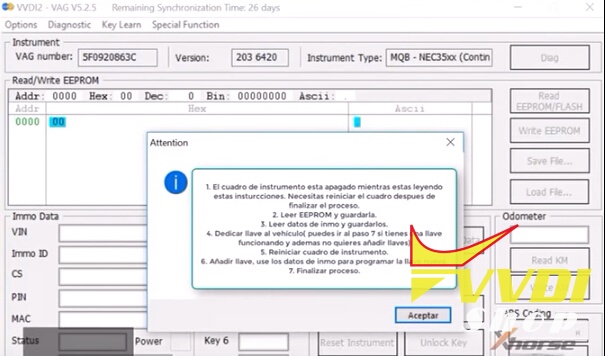
2.Read EEPROM and save
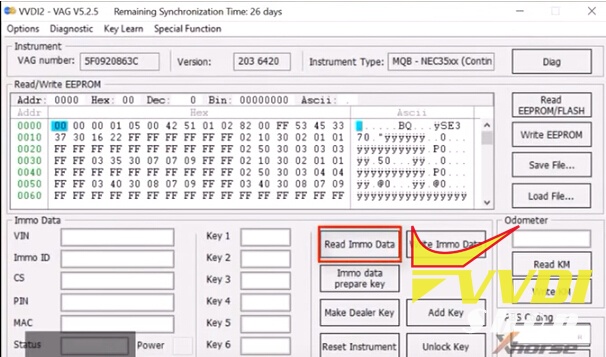
3. Read immo data and save them.
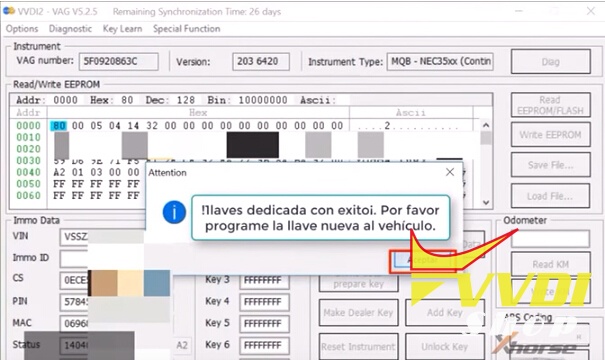
4. Dedicate key to the vehicle (you can go to step 7 if you have a working key and also do not want to add keys)
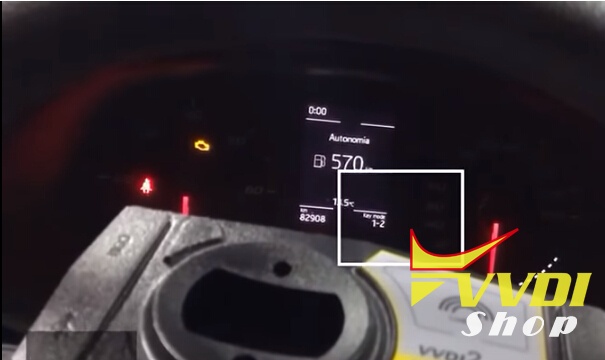
5. Reset instrument box
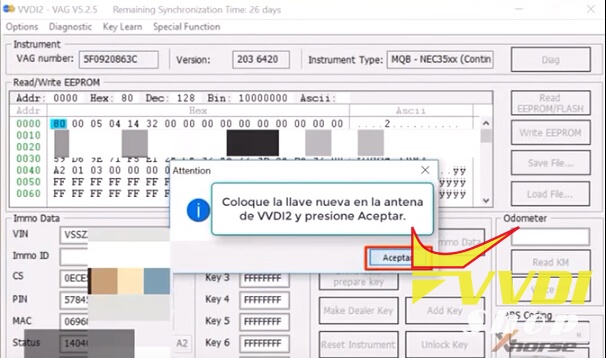
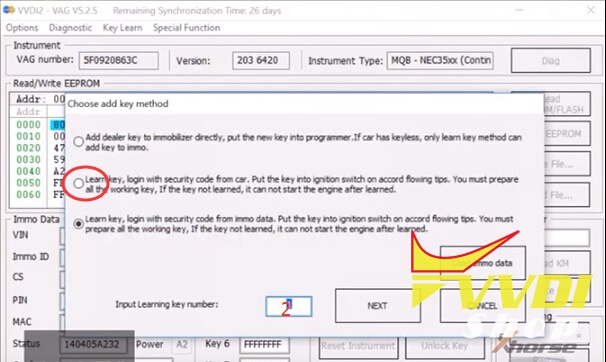
6. Add key. use the immo data to program the new key
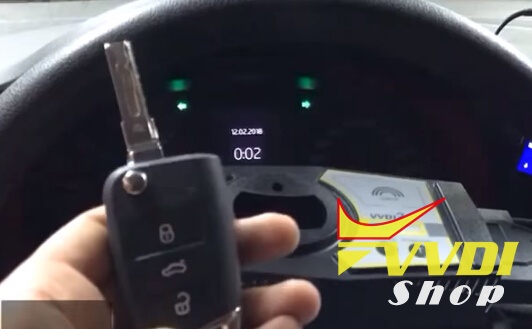
7. Finish process
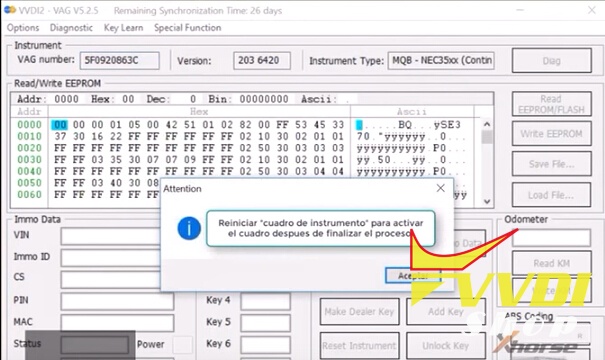

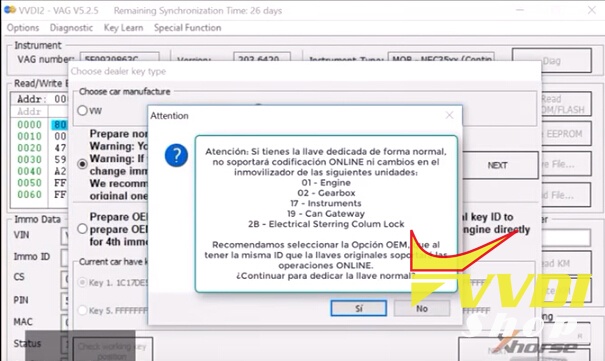
in this case we will use the second option

We recommend selecting the OEM option, which has the same ID as the original keys, will support the
ONLINE operations.
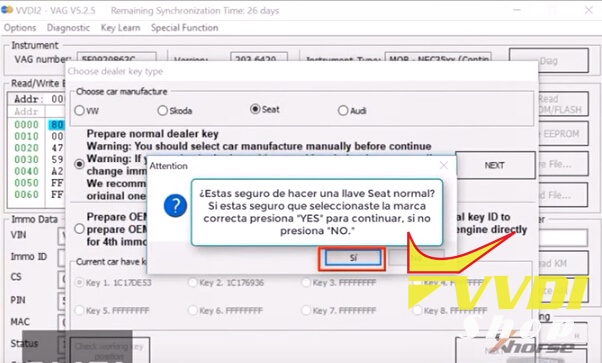
If you are sure you have selected the correct brand press “YES” to continue, if you do not press “NO”


VVDI Prog TMS370 Adapter supported MCU list
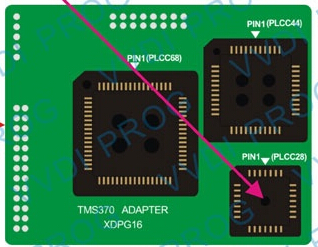
+TMS370C020A, TMS370C022A, TMS370C032A, TMS370C040A, TMS370C042A, (Need TMS370(PLCC44) ADPATER)
+TMS370C050A, TMS370C052A, TMS370C056A, TMS370C058A,TMS370C256A (Need TMS370(PLCC68) ADPATER) options in <2-MCU>->
Read/Write Old Jetta (–2009) BCM
Read/Write Opel Sail (–2009) BCM
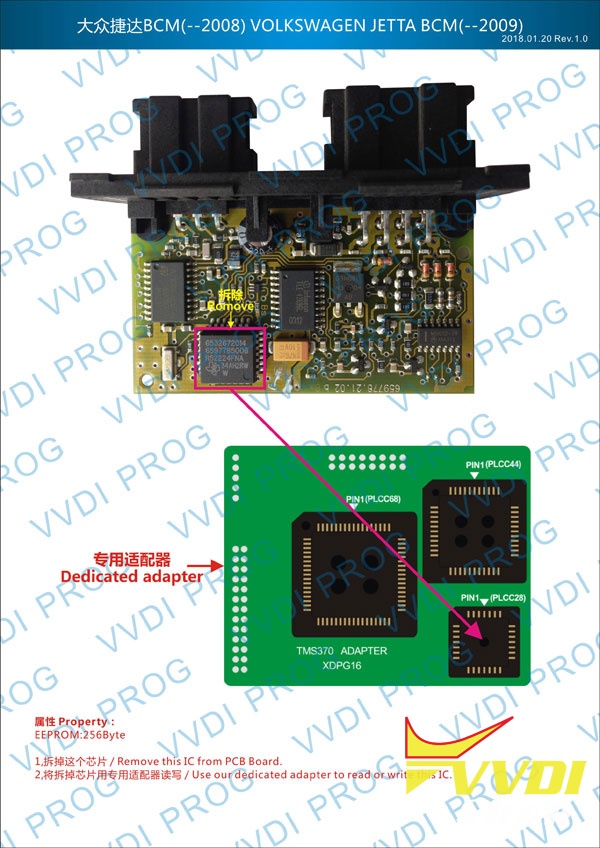
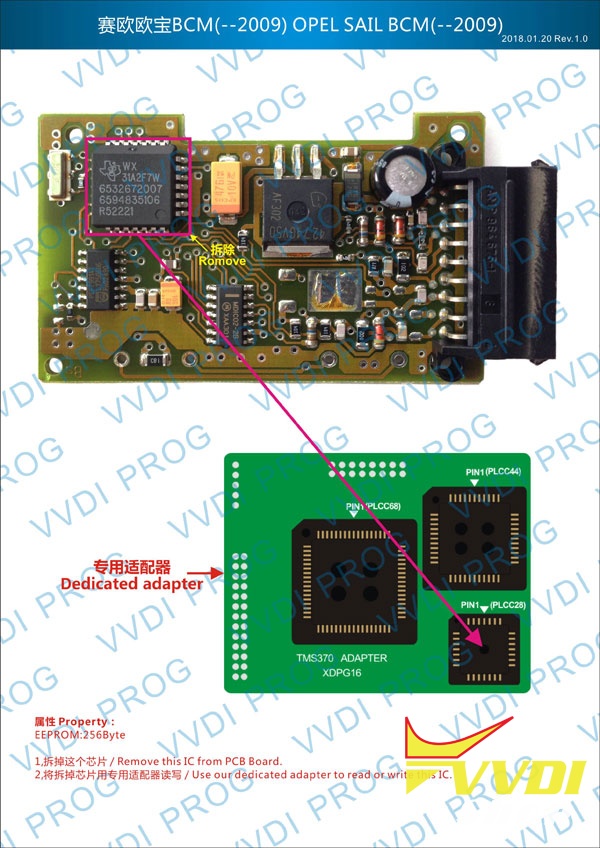
Xhorse VVDI Prog V4.6.8 Software Download on Mega
v4.6.8 (2018-02-27)
* This version DON’t need update firmware
* Fix some bugs
+ Add VVDI PROG USER MUNUAL 4.6.8 version in Doc folder
+ Add AM29BDD160GBXXE, S29CD016GXXF01, S29CD032GXXF01 options in <1-EEPROM&FLASH>-><AMD> (Need PQFP80_FLASH ADPATER)
+ Add M58BW016DBXXT, M58BW016DTXXT, M58BW016FTXXT, M58BW016FBXXT options in <1-EEPROM&FLASH>-><ST> (Need PQFP80_FLASH ADPATER)
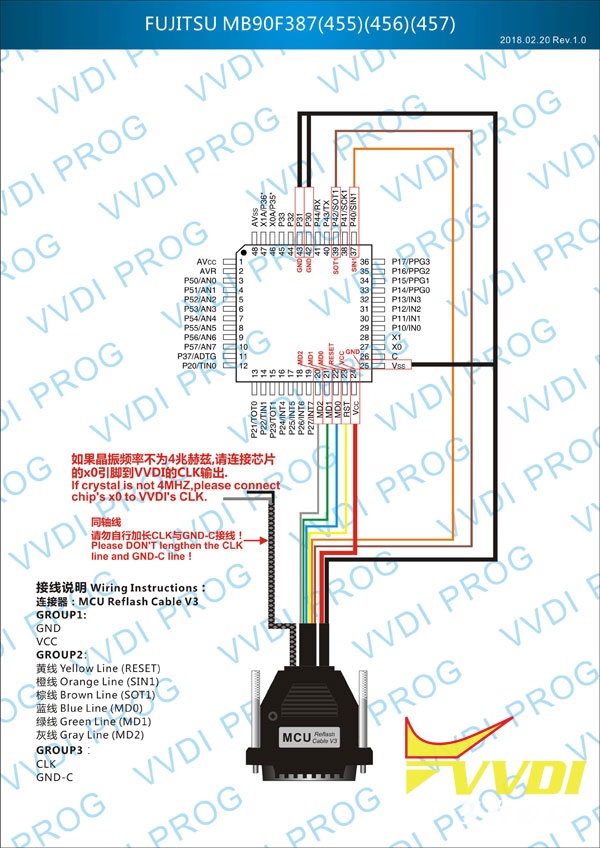
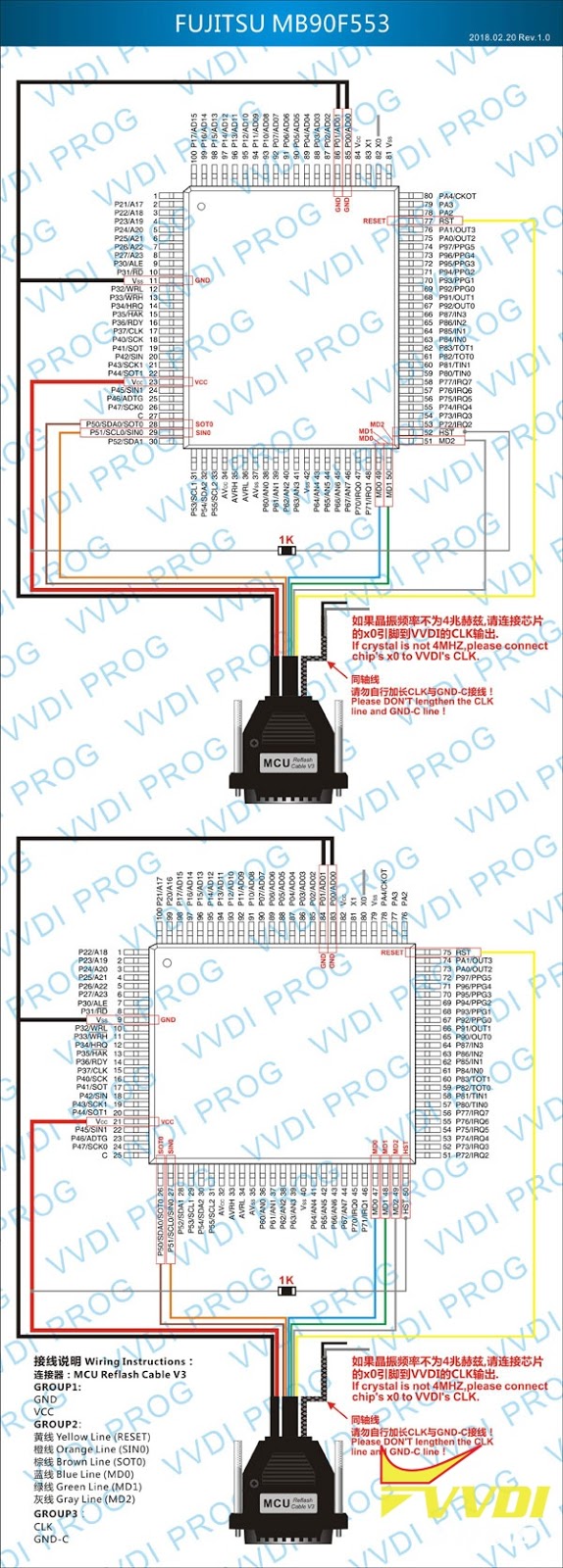
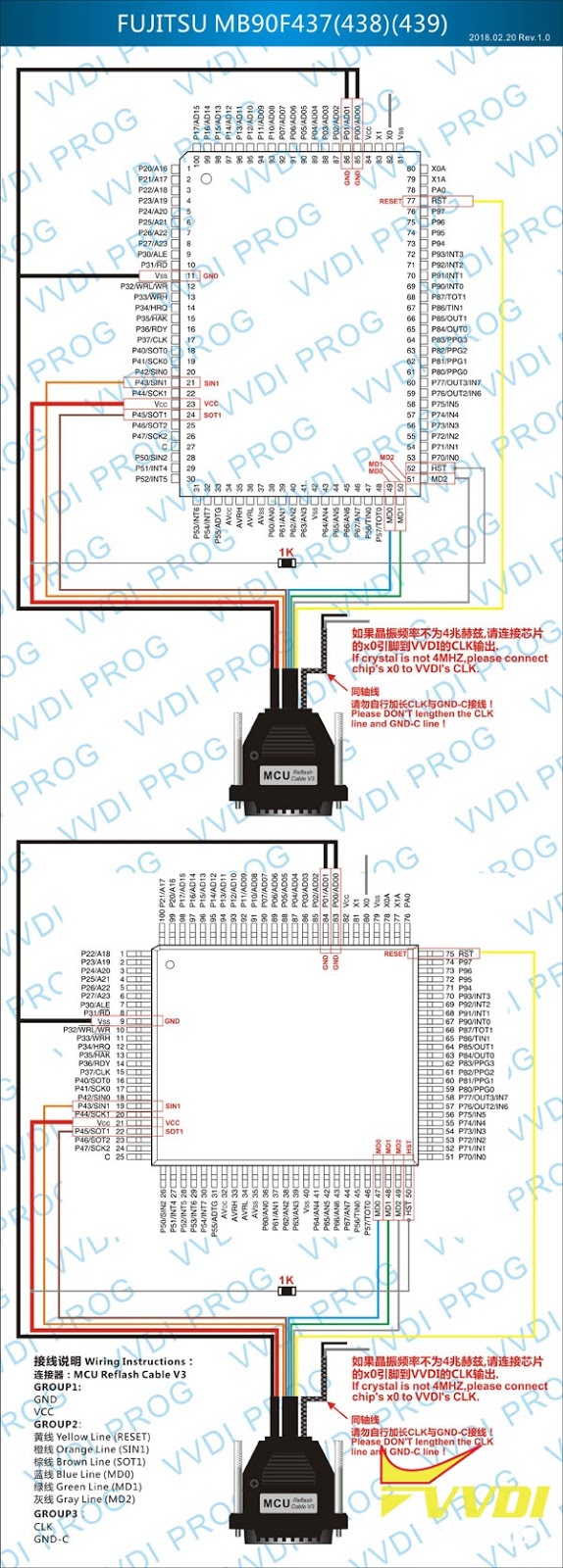
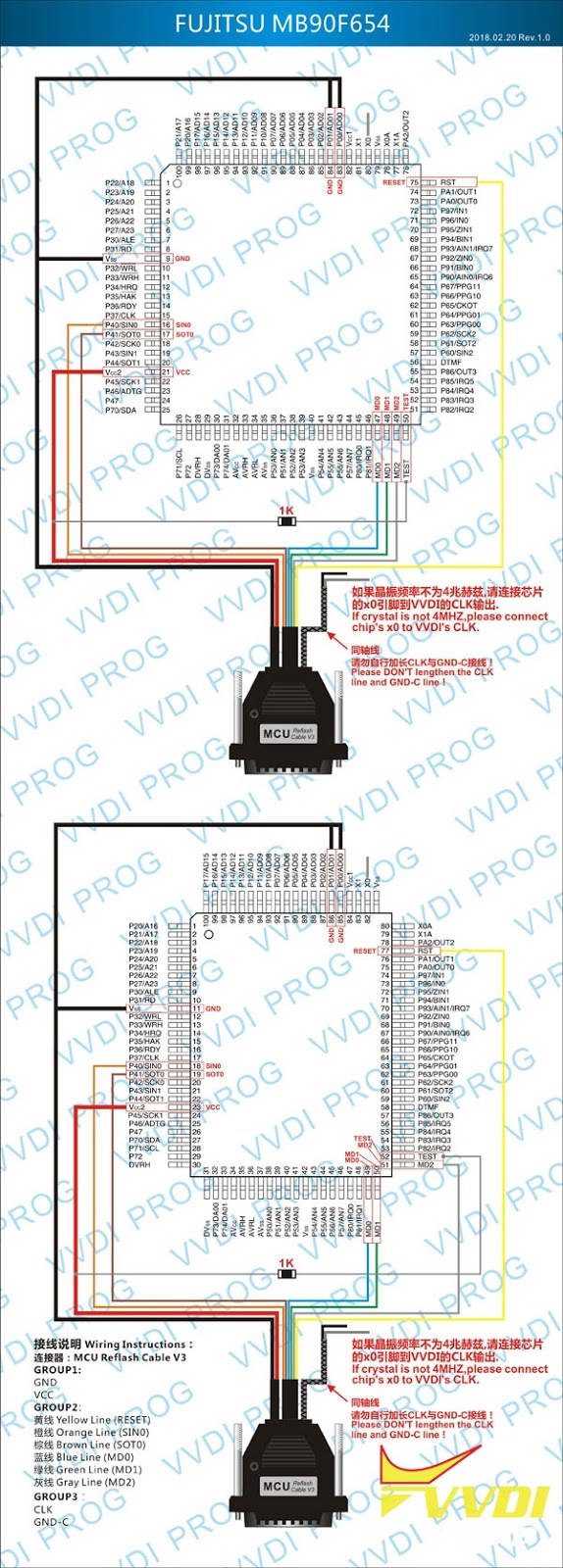
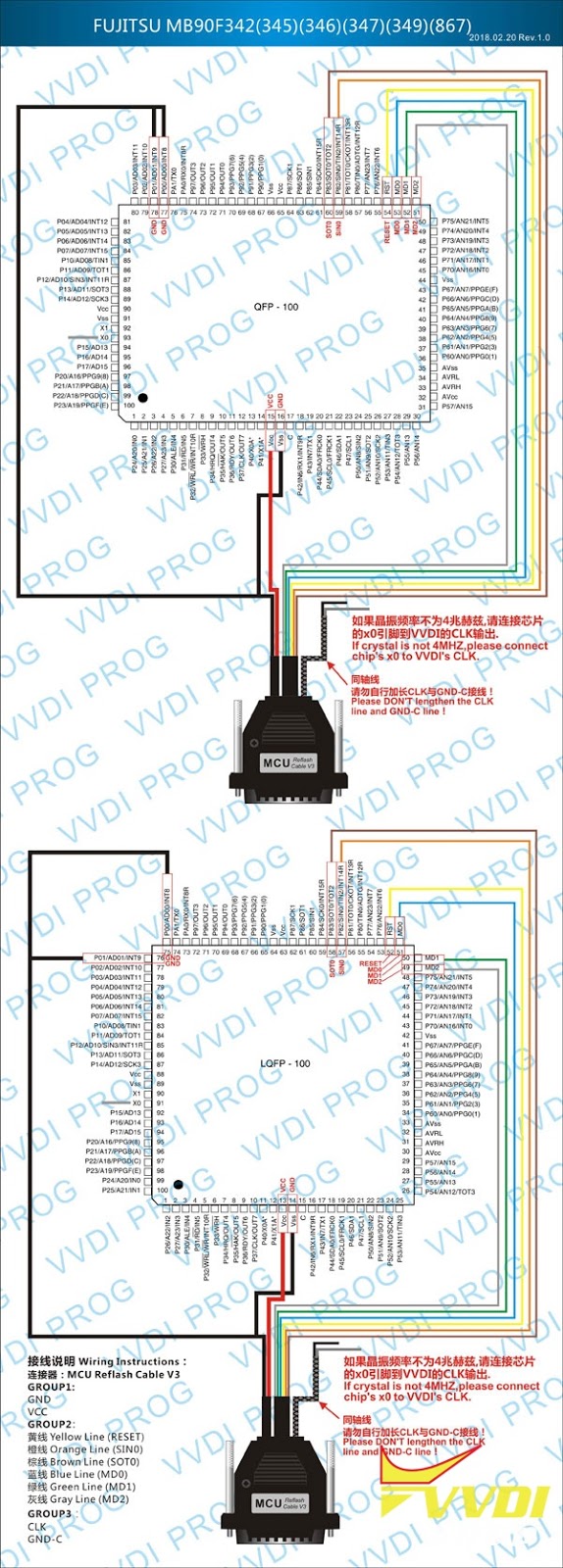
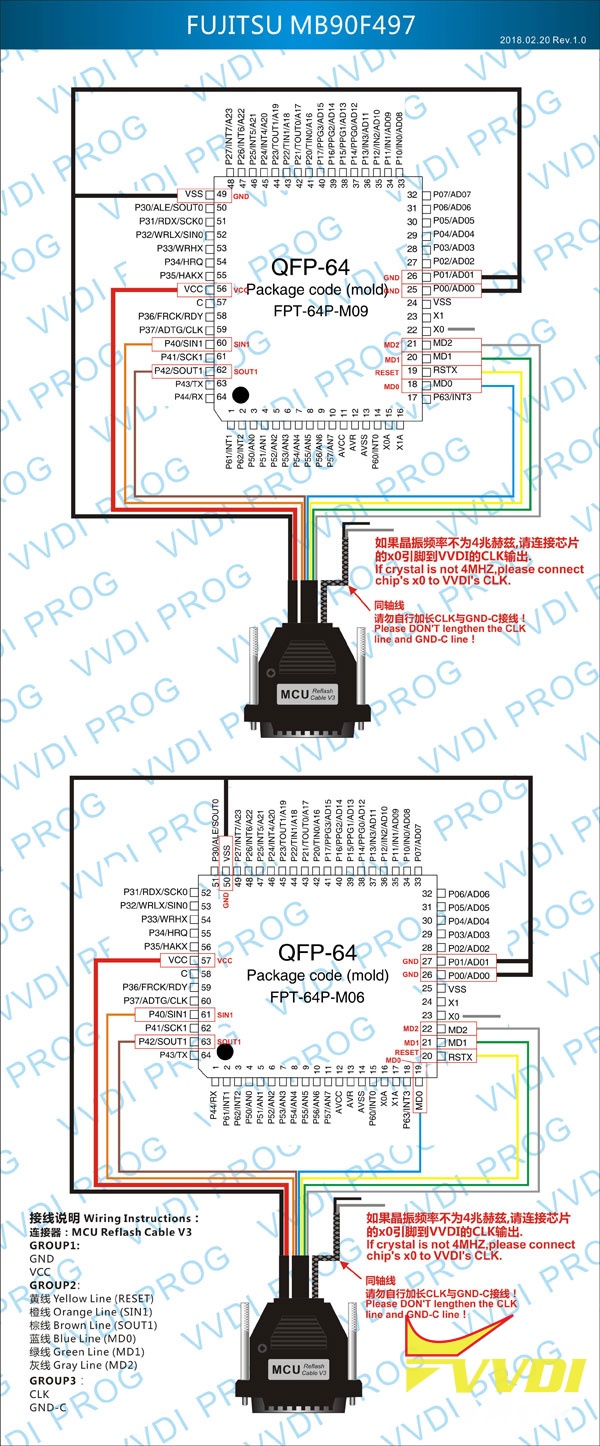
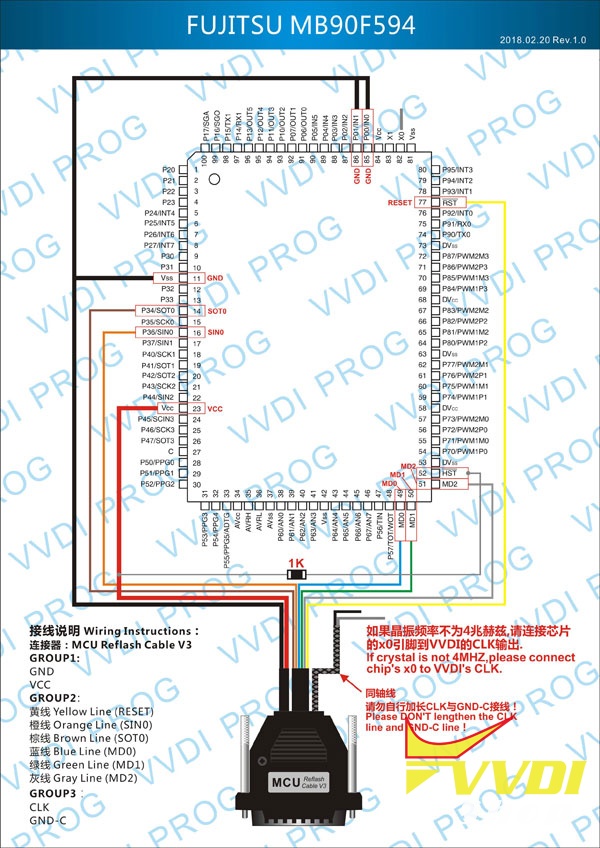
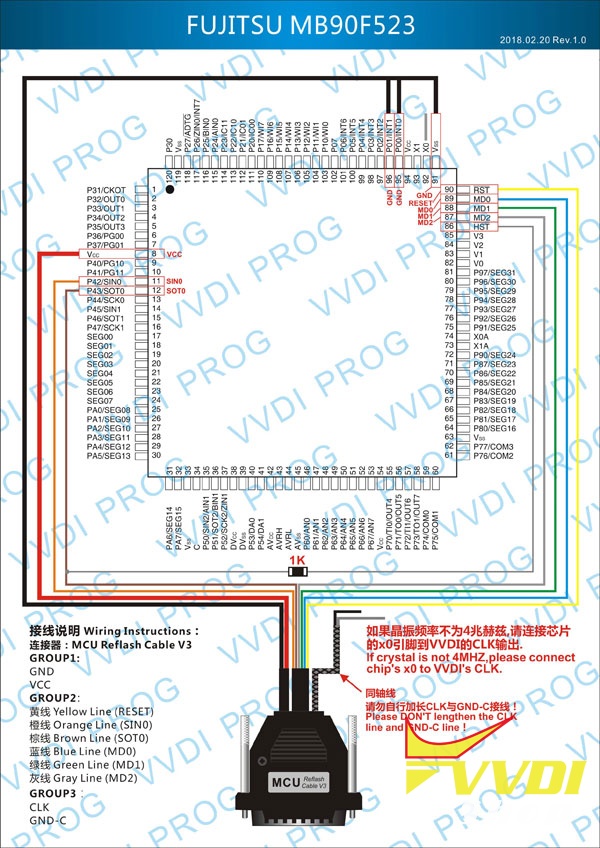
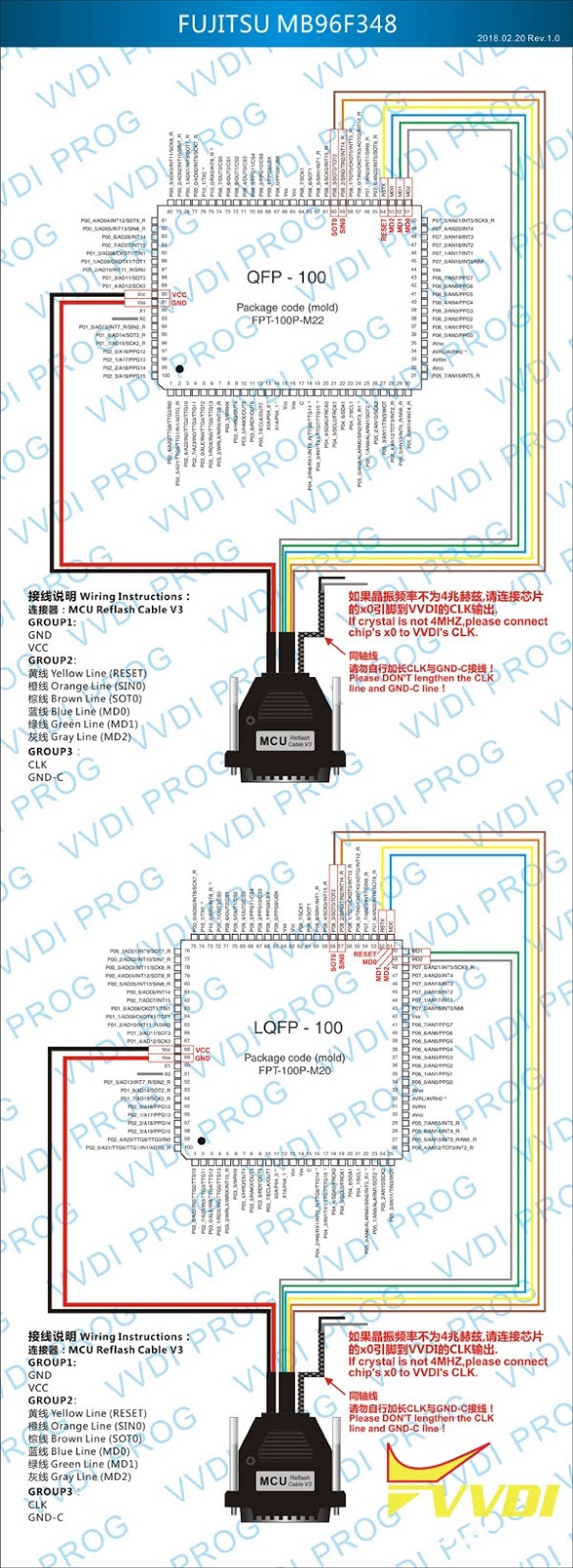
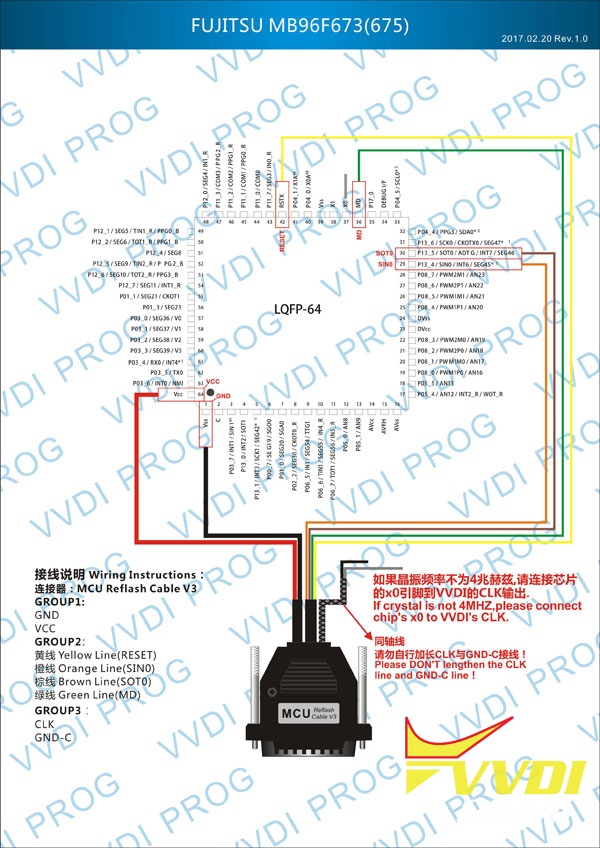
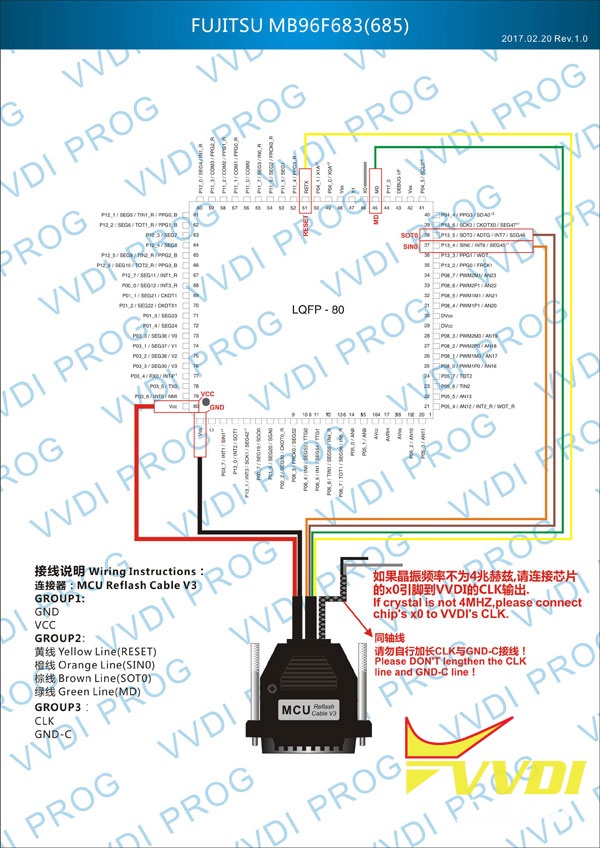
+ Add MB90F342, MB90F342A, MB90F342AS, MB90F342CA, MB90F342CAS, MB90F342CE, MB90F342CES, MB90F342E, MB90F342ES, MB90F345A,
MB90F345AS, MB90F345CA, MB90F345CAS, MB90F345CE, MB90F345CES, MB90F345E, MB90F345ES, MB90F346A, MB90F346AS, MB90F346CA,
MB90F346CAS, MB90F346CE, MB90F346CES, MB90F346E, MB90F346ES, MB90F347A, MB90F347AS, MB90F347CA, MB90F347CAS, MB90F347CE,
MB90F347CES, MB90F347E, MB90F347ES, MB90F349A, MB90F349AS, MB90F349CA, MB90F349CAS, MB90F349CE, MB90F349CES, MB90F349E,
MB90F349ES,MB90F387, MB90F387S, MB90F423GA, MB90F423GB, MB90F423GC, MB90F428GA, MB90F428GB, MB90F428GC, MB90F438L,
MB90F439, MB90F439S, MB90F455, MB90F455S, MB90F456, MB90F456S, MB90F457, MB90F457S, MB90F462, MB90F497, MB90F497G, MB90F498G,
MB90F523B, MB90F543, MB90F543G, MB90F543GS, MB90F546G, MB90F546GS, MB90F548G, MB90F549, MB90F549G, MB90F553A, MB90F594A,
MB90F654A, MB90F867A, MB90F867AS, MB90F867E, MB90F867ES, MB96F348A, MB96F348T, MB96F348H, MB96F348C, MB96F348Y, MB96F348R,
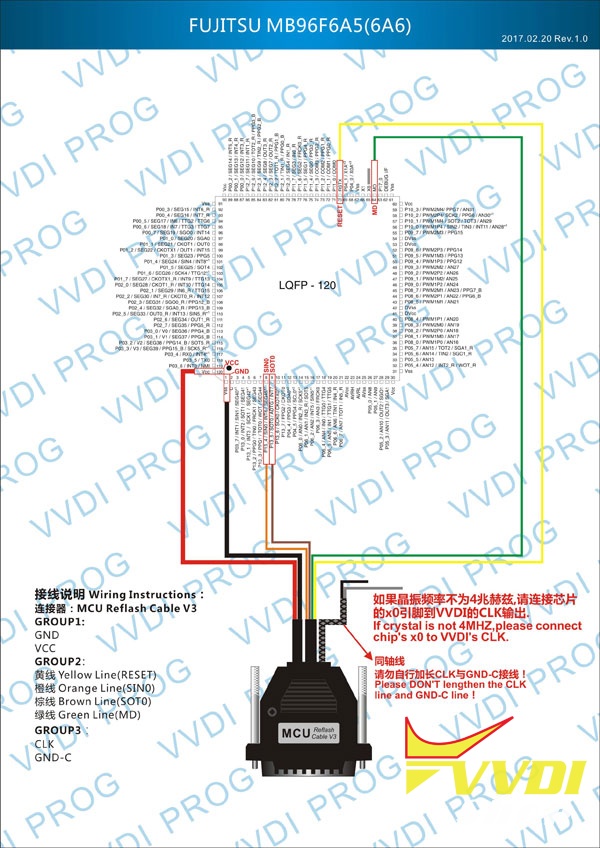
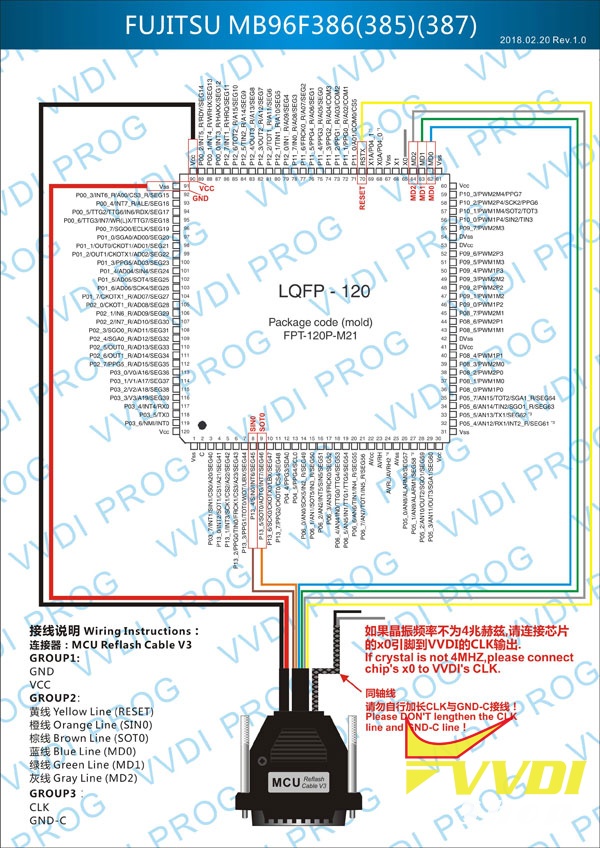
MB96F385, MB96F386, MB96F387, MB96F673, MB96F675, MB96F683, MB96F685, MB96F693, MB96F695, MB96F696, MB96F6A5,
MB96F6A6 options in <2-MCU>-><FUJITSU-MB91F>
+ Add PANDA_BSI_1L40K option in <4-IMMOBILIZER>-><FIAT>
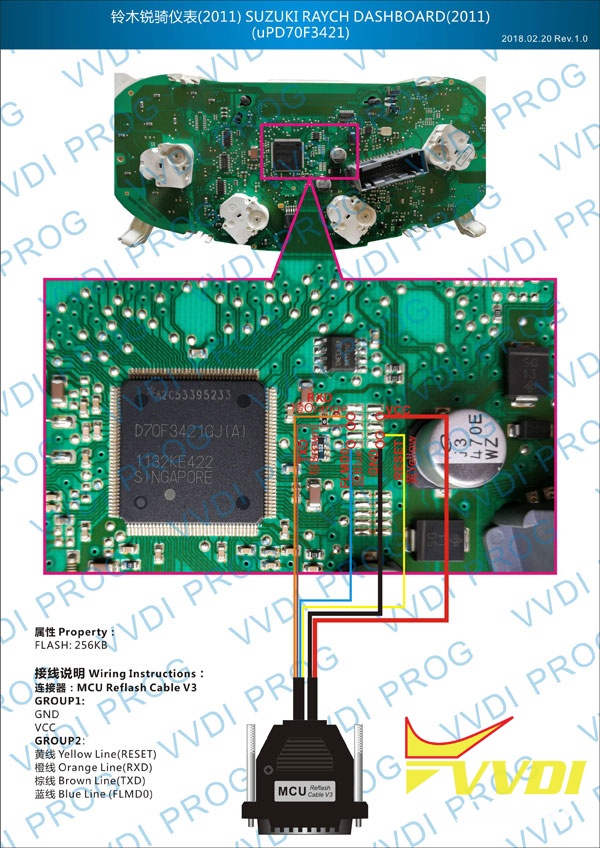
+ Add RAYCH(2011) option in <5-DASHBOARD>-><SUZUKI>
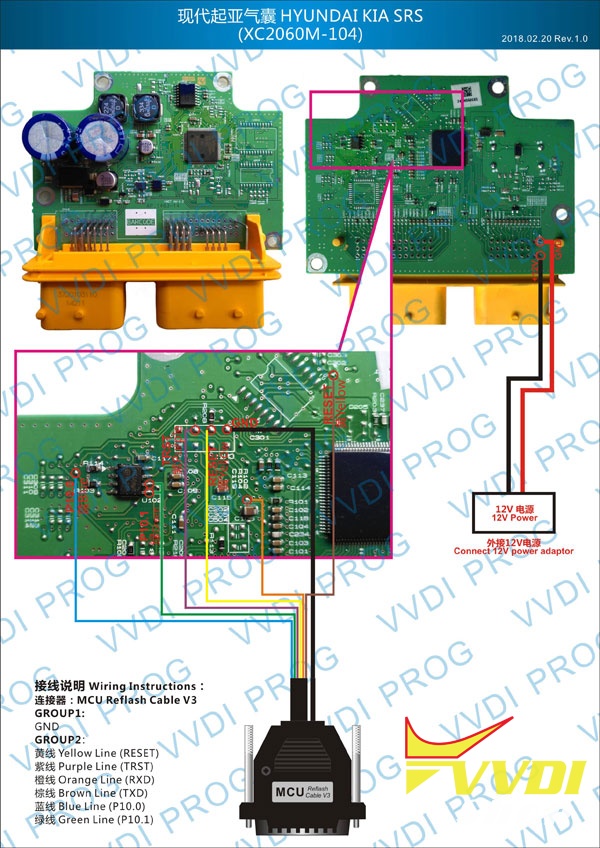
+ Add SRS(XC2060M) option in <7-AIRBAG>-><KIA>
+ Add SRS(XC2060M) option in <7-AIRBAG>-><HYUNDAI>
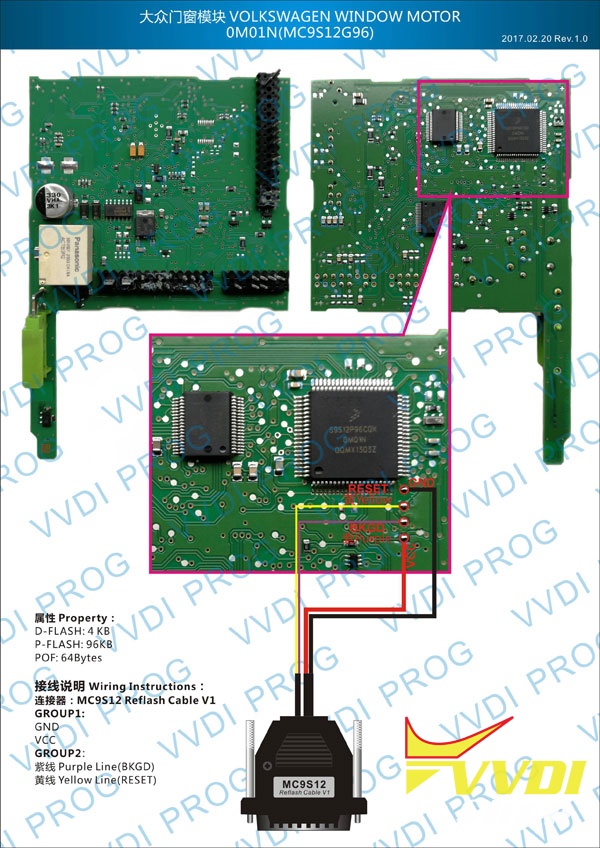
+ Add WINDOW-MOTOR-0M01N option in <8-OTHER>-><VOLKSWAGEN>



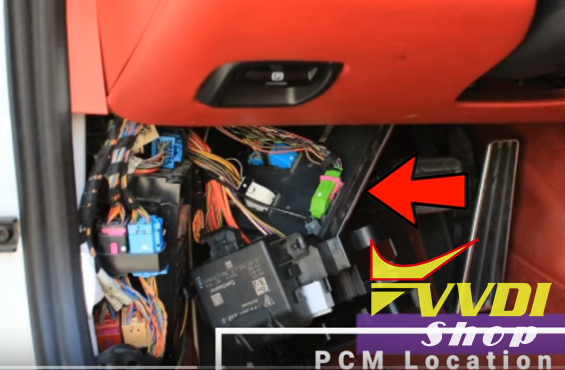
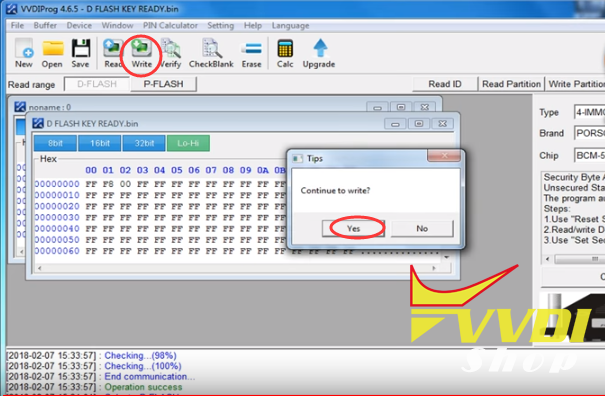
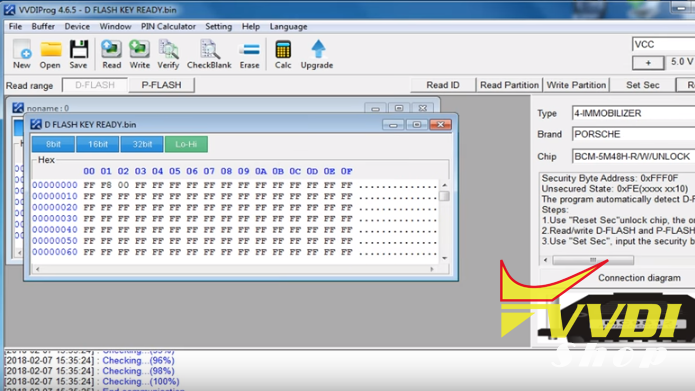
Program Porsche Boxster 2016 key with VVDI2
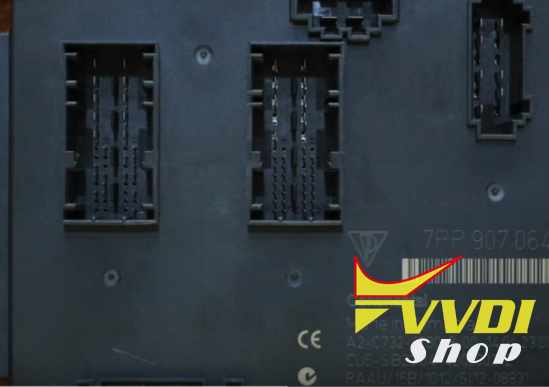
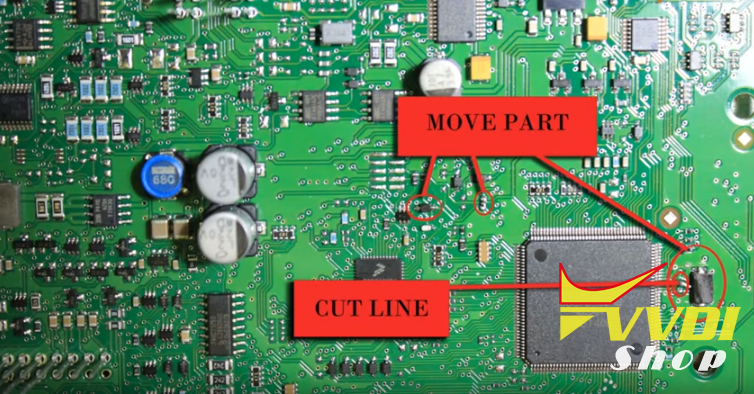
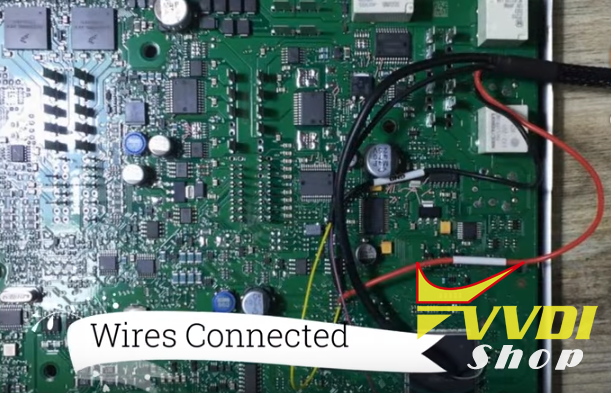
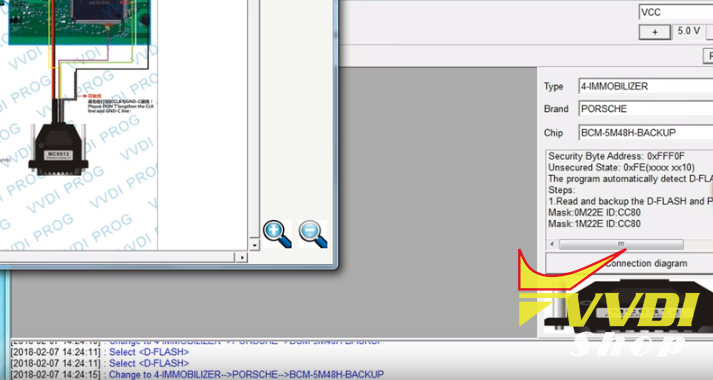
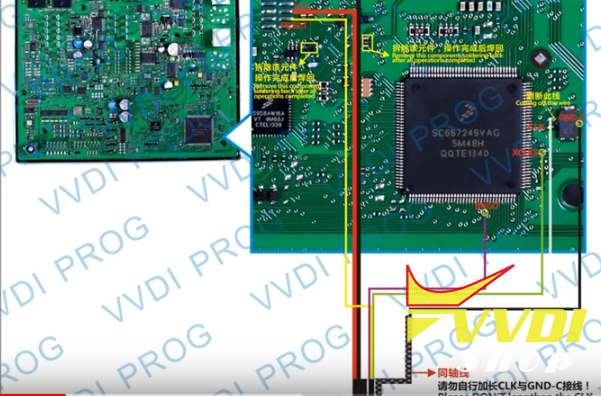
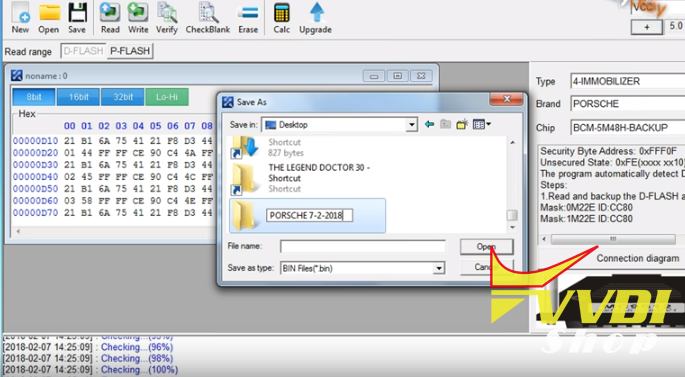
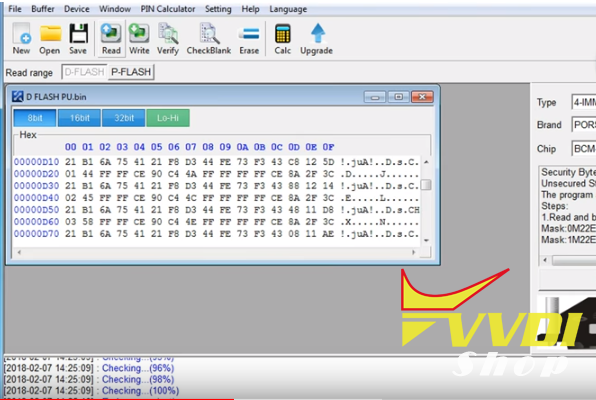
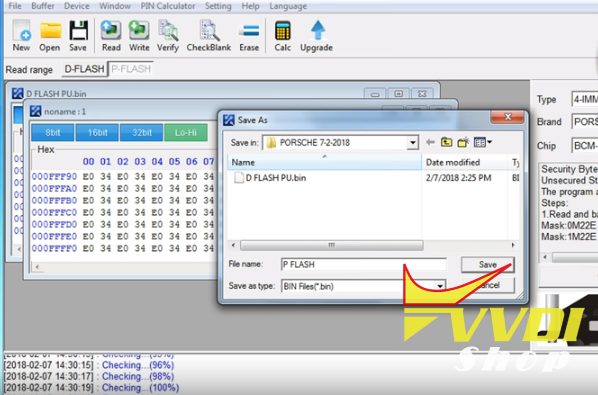
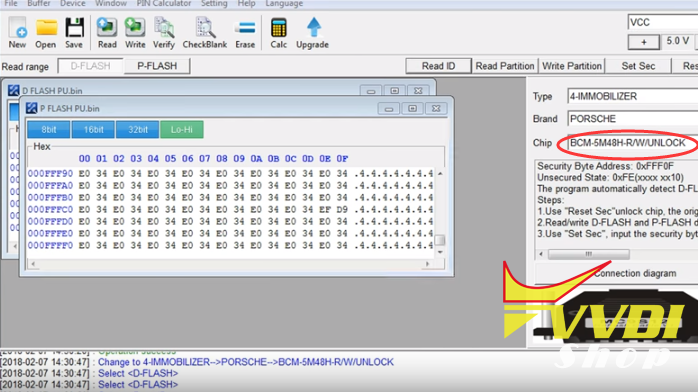
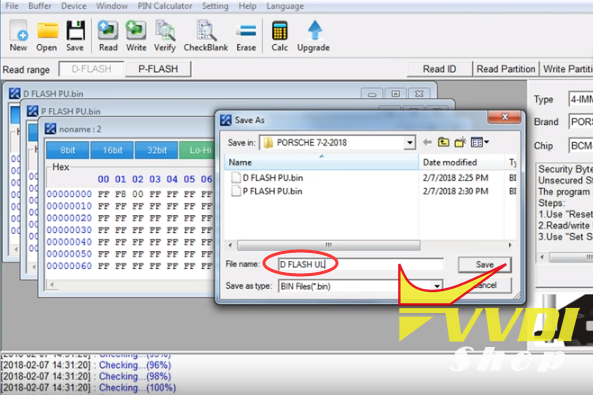
Step 2: Add Dealer Key with VVDI2 Porsche
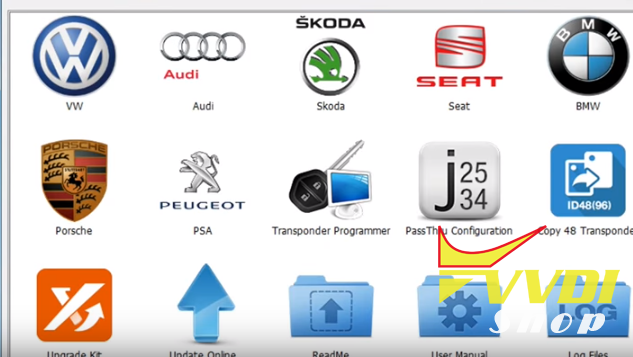
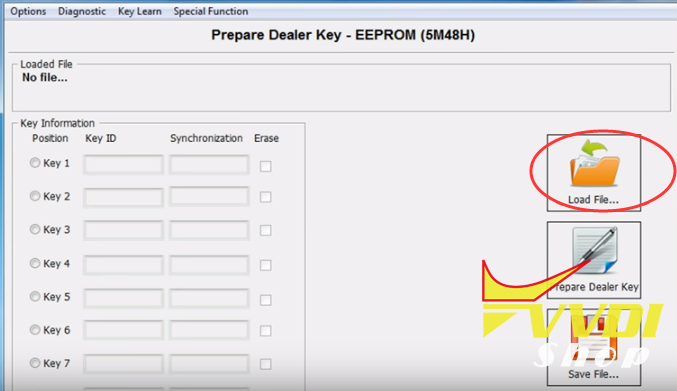
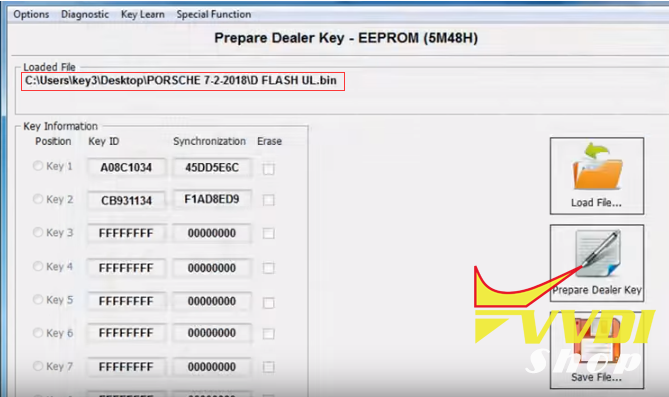
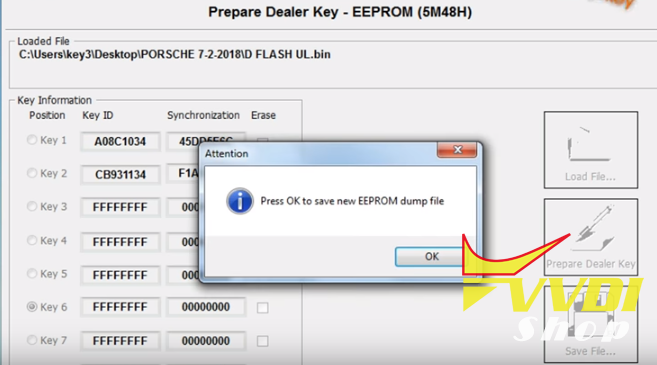
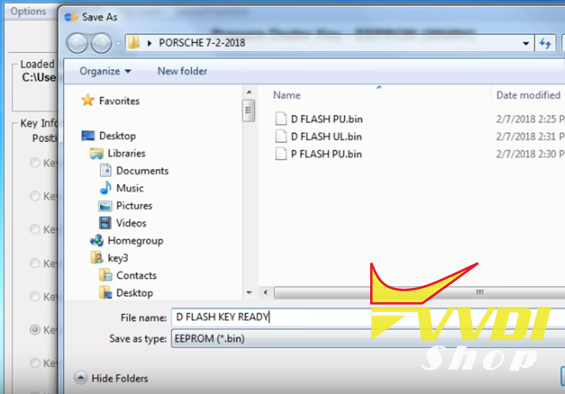
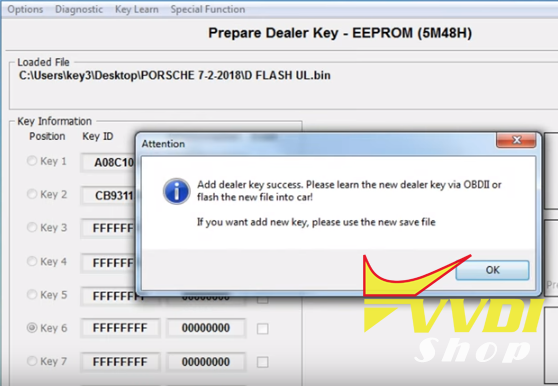
Step 3: Write back data to car
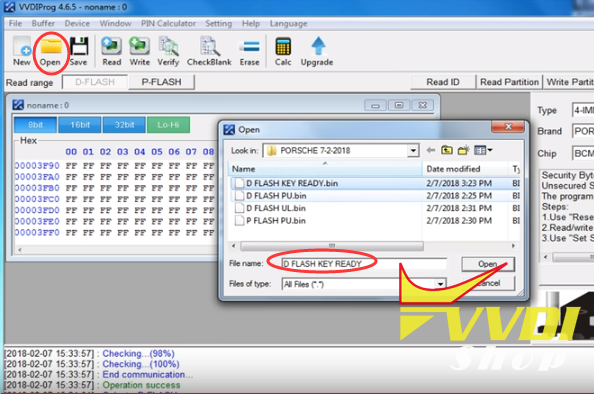
Free download Xhorse VVDI remote key data base
Download Xhorse VVDI2 remote database will help solve error E0-94 while making remotes.
Problem:
I am having Error E0-94 while making remotes!!!
I bought a bunch of remotes some time ago and there were no mentioning if they are China or EU remotes! Now that Samic has changed my default data base to EU now my remotes will not work because they are China!????? So that means i have to throw them out!???? Is this how it should work!?
Would be glad if someone can post here the Chinese remote data base so i can still use my already bought (it looks like Chinese version) remotes.
P.S. Would be glad if someone can post here the Chinese remote data base so i can still use my already bought (it looks like Chinese version) remotes.
Solution:
if your VVDI2 have china data base , and you use EU remote – this is normal
also in reverse way
you must use Eu remote + customize VVDI to EU
or use Chinese remote and keep china database.
if you install new software , system automatically download Chinese database.
you must delete file, connect VVDI2 key programmer, run software and proper database will be downloaded.
if you have already Chinese data base , not always can be overwrite.
link for all if you need to use this database need to close internet connection in C/Program Files/VVDI2/Transponder Programmer/Database -delete your file remote database and put this
https://mega.nz/#!FkIDQbhK!VT_Hq6nbUuuL_r1aLzCcsN66EyUat0kQtjwW4I9WRbU
Feedback:
Thanks! This solution works and now i can still use my remotes without need to buy new EU remotes.
FYI:
How to customize remote Database to EU (English)?
Contact seller and request to change your VVDI2 serial number to region when you are.