ابزار Xhorse VVDI
Xhose VVDI نرم افزار برنامه نویس اصلی و سخت افزارابزار Xhorse VVDI
Xhose VVDI نرم افزار برنامه نویس اصلی و سخت افزارFree Download Xhorse Dolphin II Key Cutting Machine User Manual
What’s the difference between the new Xhorse Dolphin XP005L (Dolphin II) and Dolphin XP005 key cutting machine?
Similarities:
same database
same function
with built-in lithium battery
light weight
both can be controlled by Xhorse app
Differences:
- Adjustable HD Touch Screen
XP005L: Yes, operate via touch screen directly or operate via Xhorse App on mobile phone/key tool max/key tool plus. New UI interface, easy & smart to control. Supports 0-90 degrees angle adjustment, 5 inch high definition tablet screen to minimize eye fatigue.
XP005: No

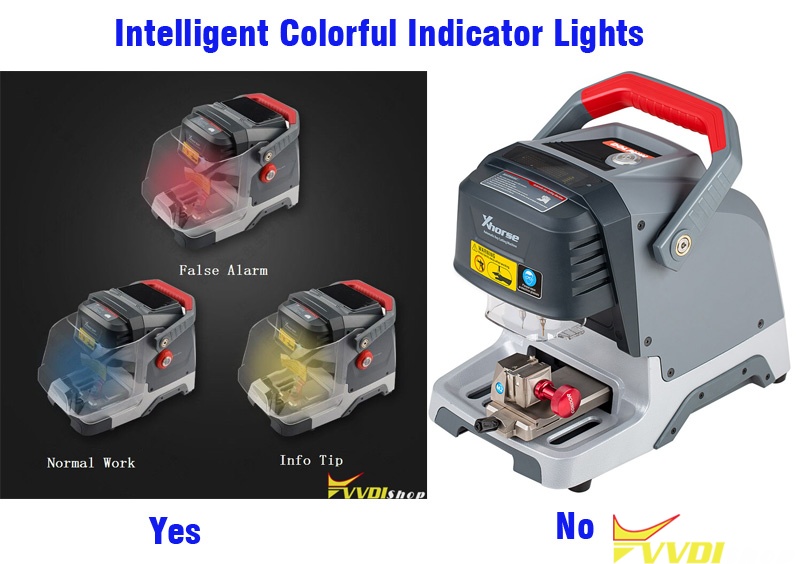
- Intelligent Colorful Indicator Lights
XP005L: Yes,
The indicator light changes color according to different real-time working status.
Red light – false alarm/error warning
Blue light – normal operation
Yellow light – information notification
XP005: No
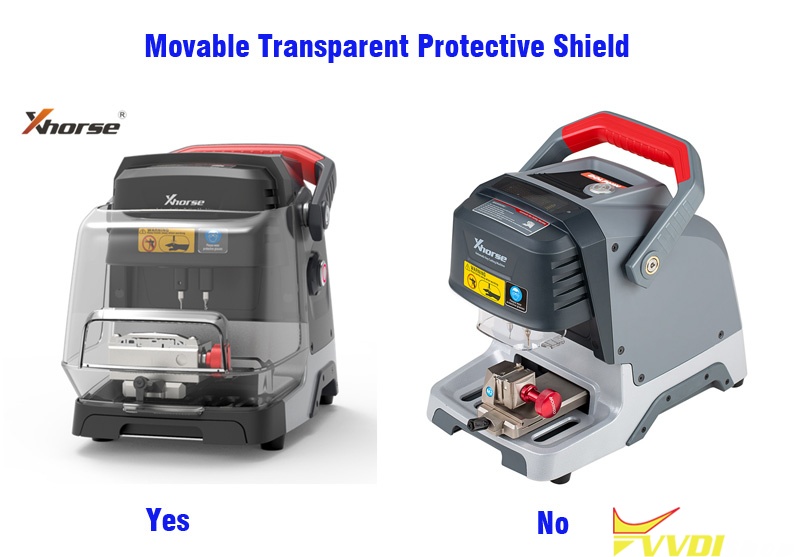
- Movable Transparent Protective Shield
XP-005L: Yes, More neater and safer. Clearly shows key cutting status all the time, prevents metal debris from spattering during processing.
XP005: No
- Upgrade Lengthen Working Space
XP005L expands cutting space to keep stable & secure, more reliable and powerful.
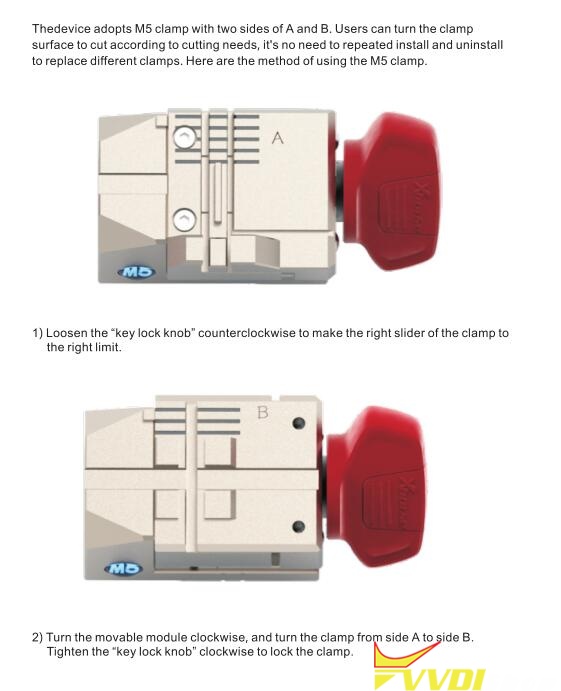
- Clamp
Dolphin XP-005L comes with M5 2 in 1 clamp in default. M5 clamp= M1 + M2 clamp. M5 clamp can be used with Dolphin II and Condor Mini Plus II only.
XP005L is compatible with old M1 and M2 fixture as well. But XP005 is not compatible with M5 clamp.

M5 Clamp instruction
What is New in Xhorse Dolphin II XP005L?
2021 new Xhorse Dolphin II XP005L key cutting machine is coming soon. As an upgrade version of Dolphin XP005, what’s new in the machine?
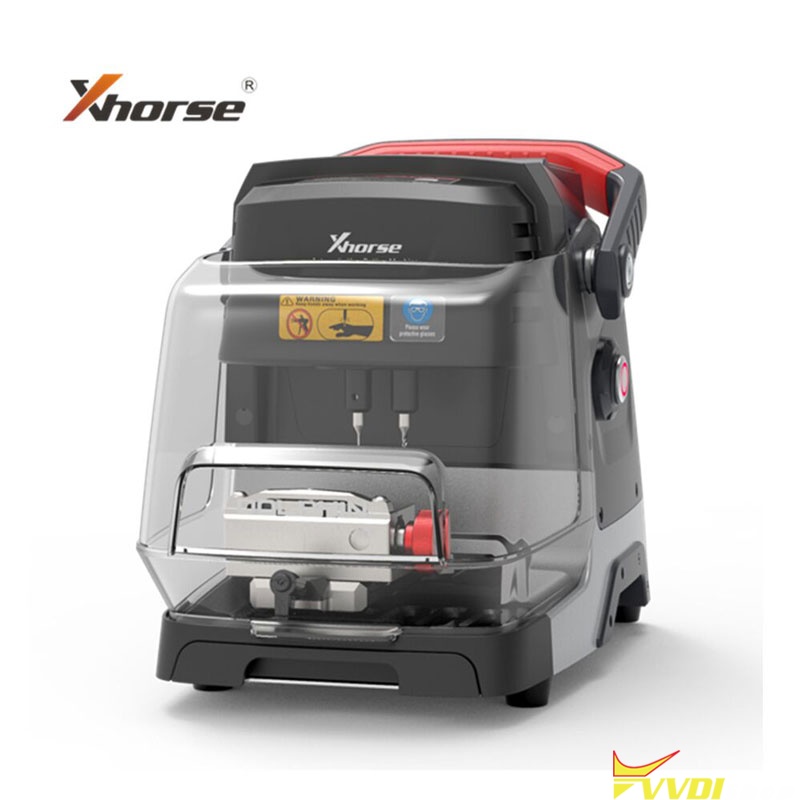
Dolphin II XP005L New Features:
- Adjustable HD Touch Screen
Easier touch to control, flexible application. Supports 0-90 degrees angle adjustment, 5 inch high definition tablet screen to minimize eye fatigue.
- Intelligent Colorful Indicator Lights
The indicator light changes color according to different real-time working status.
Red light – false alarm
Blue light – normal operation
Yellow light – information notification

- Movable Transparent Protective Shield
More neater and safer. Clearly shows key cutting status all the time, prevents metal debris from spattering during processing.
- Upgraded & Lengthen Working Space
Expands cutting space to keep stable & secure, more reliable and powerful.
- Multi-purpose M5 Clamp
Standard equipped M5 clamp (M1 and M2 2 in 1), optional M1/M2 Clamp, M3 Clamp, M4 Clamp. Supports to cut standard single sided, standard double sided, 2 track external, 4 track external, dimple, channel track, 4 track internal, FO21& Citroen SX9 keys, residential keys, etc.
Dolphin XP005L Highlights
- Support to cut key anywhere without a smart phone.
- Database covers 100 car brands, 2000 car models, 20000 keys.
- Built-in lithium battery, compact and lightweight design for ease carry.
- All aluminum body structure, strong & accurate.
- New UI interface, easy & smart to control.

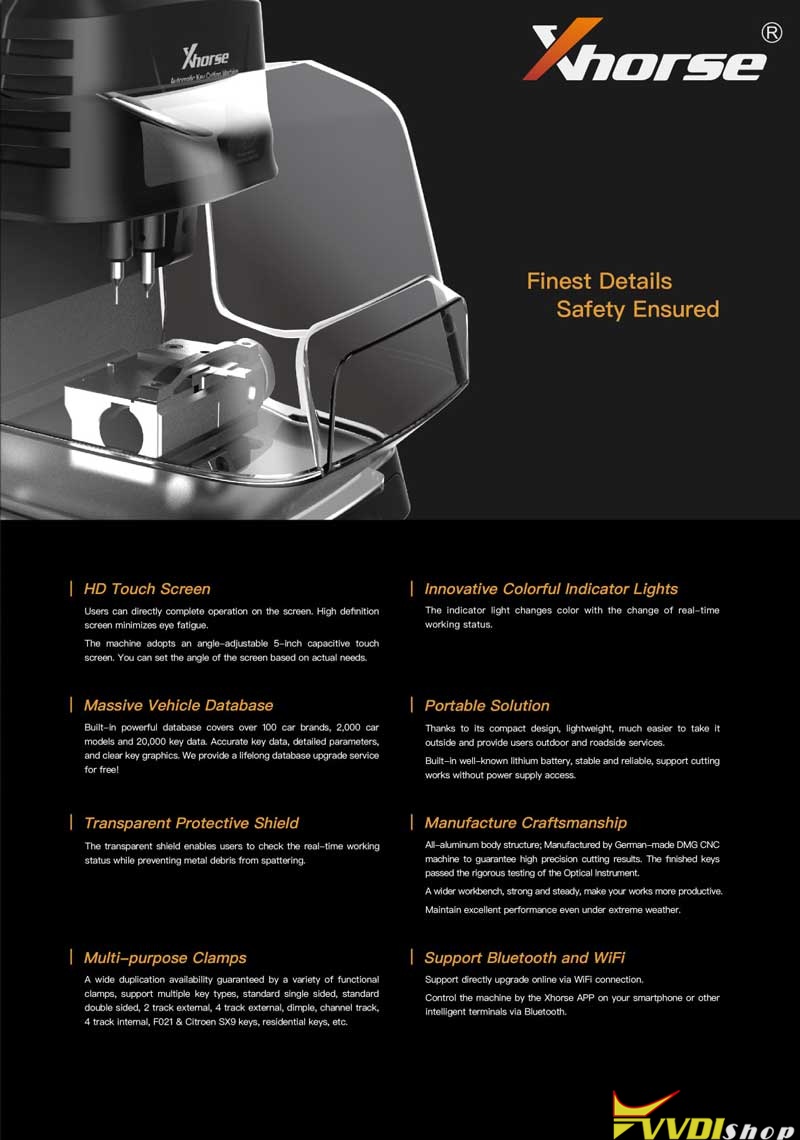
New Xhorse Dolphin XP005L is smarter and safer, which will bring locksmiths more convenience to adapt different working environments.
Failed to Generate Xhorse RAV4 2019 Remote Solution
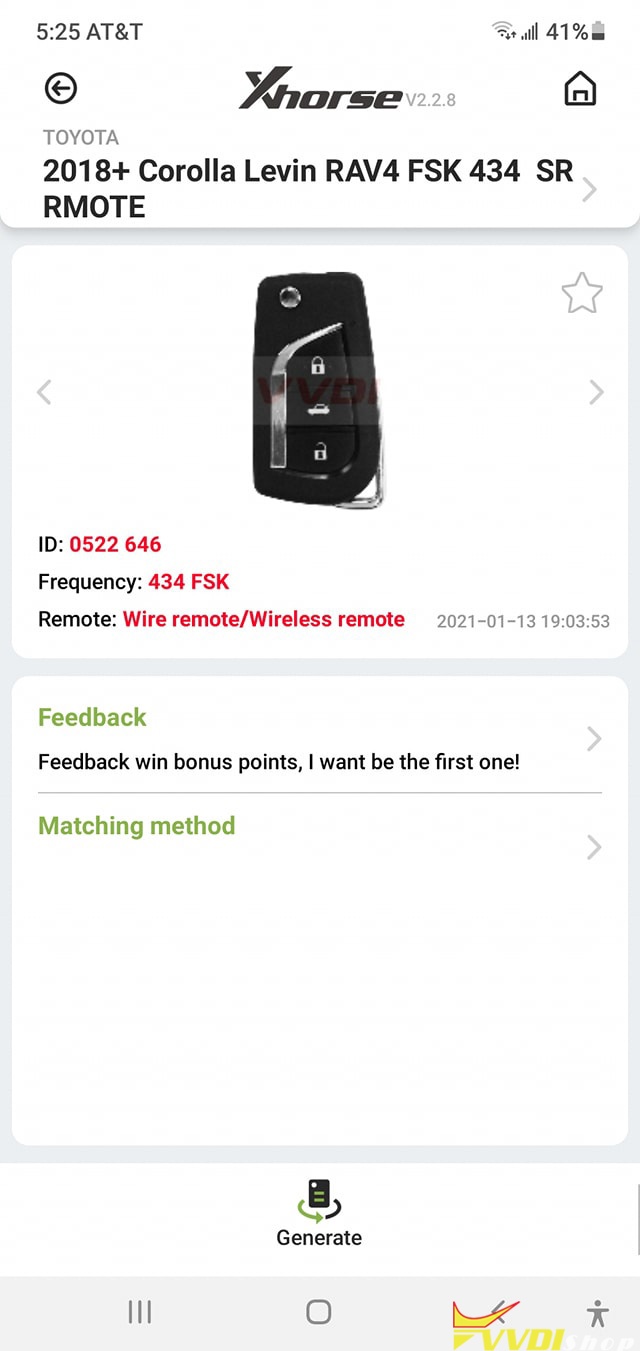
Some reported that they failed to generate Xhorse Toyota universal remote for 2019-2021 RAV4 US/JP model with vvdi mini key tool and were unable to learn to vehicle. Here’re working experience and suggestions.
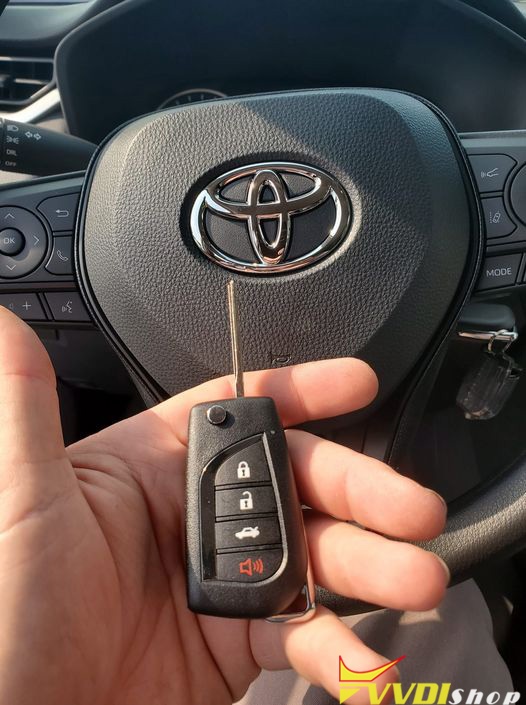
Suggestion:
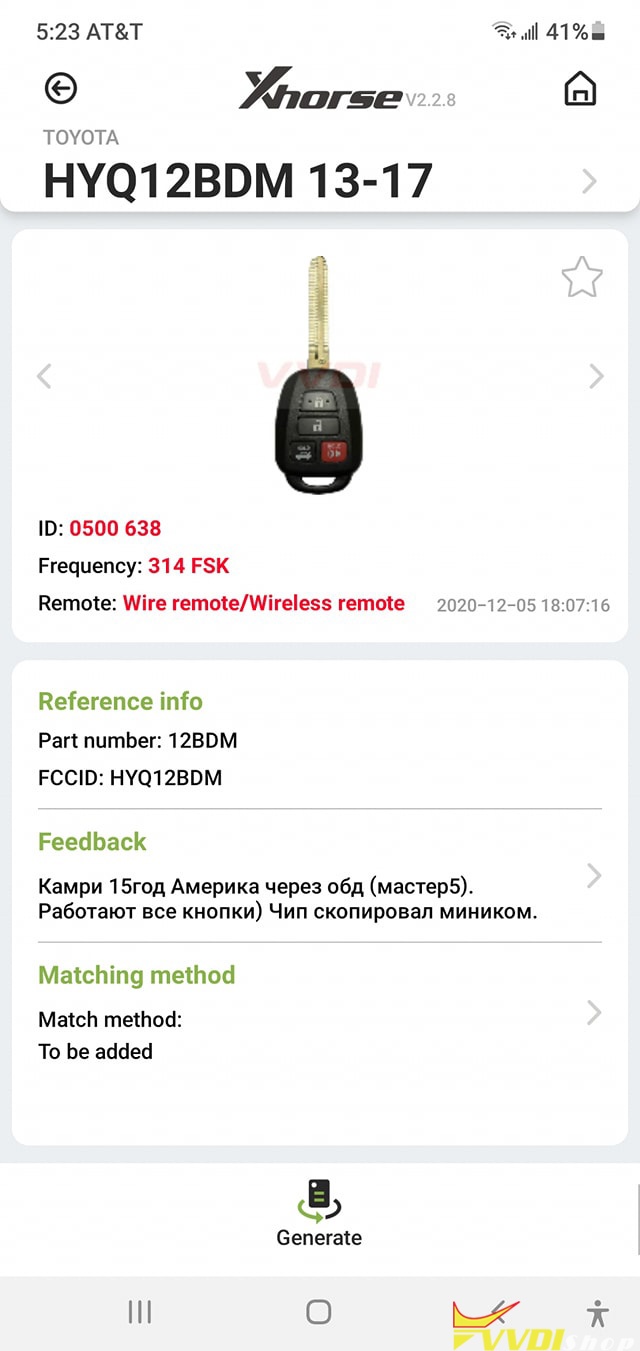
Working experience:
Making progress. 2019 Toyota RAV4 built in Japan for US market. We have made multiple attempts at using Xhorse Universal remotes on 2019 and up RAV4 with no luck. I was out of stock on OEM keys and decided to once again try a universal. Following the advice above I made about these vehicles I flashed it for HYQ12BDM and it learned to the car, this FCC is neither a match for this rav or the previous ones and I have attempted with universal, but this one worked.

Why Xhorse Key Tool Plus Screen is darker other other pad?
Question
My Xhorse VVDI Key Tool Plus screen is always darker than other pad in same light. How to adjust its brightness? I can’t find it, please help me!
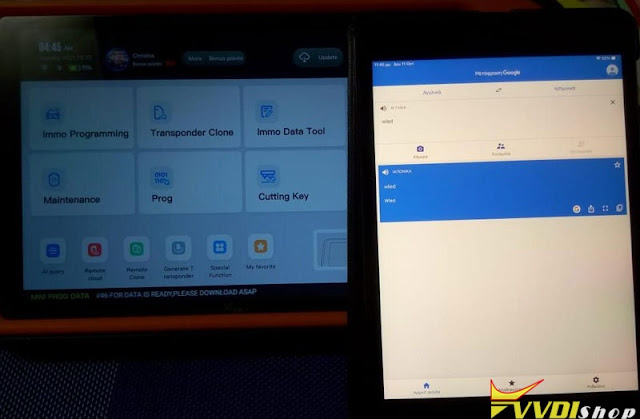
Answer
Where to adjust VVDI Key Tool Plus brightness, please find the Set button on top right corner of Home page,
Set >> System setting >> Brightness control
Follow the path above, you’re allowed to adjust brightness as required.
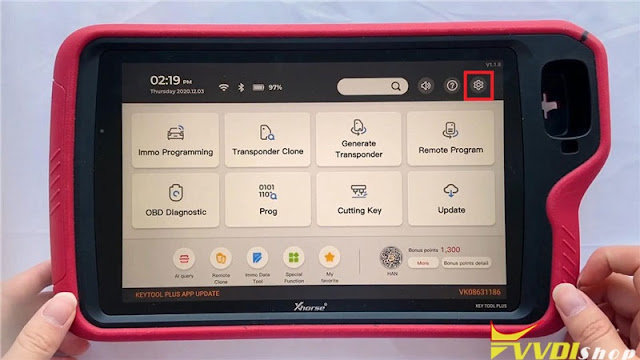
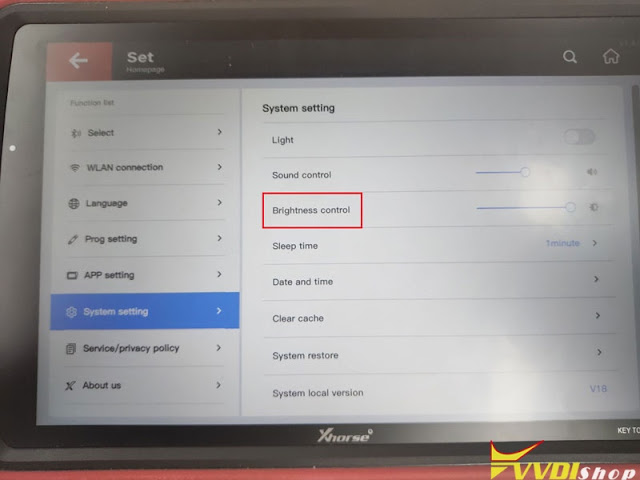
Thanks to www.vvdishop.com engineer helped me a lot.
How to Upload Data from PC to Xhorse Key Tool Plus?
Since lots of users do not know how to transfer data from Xhorse VVDI Key Tool Plus to PC. This is an operating instruction in 2 ways.
Method 1. Transfer Data via Type C USB Cable
1. Connect Type C cable with key tool plus and USB cable with PC
2. Go access VVDI Key Tool Plus storage spaces on PC, follow the file path: com.xhorse.assembly >> share >> car model >> date
Now you can find out the data required, and copy data anywhere.
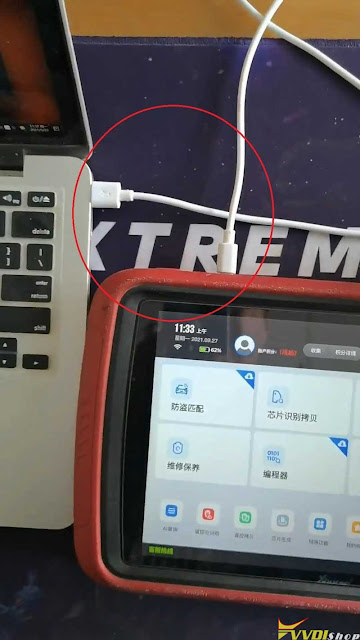


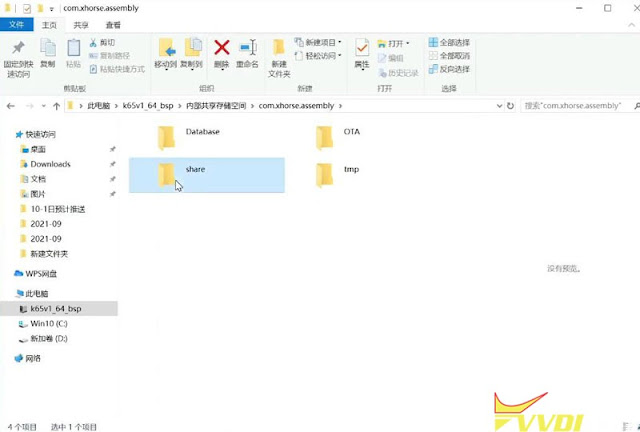
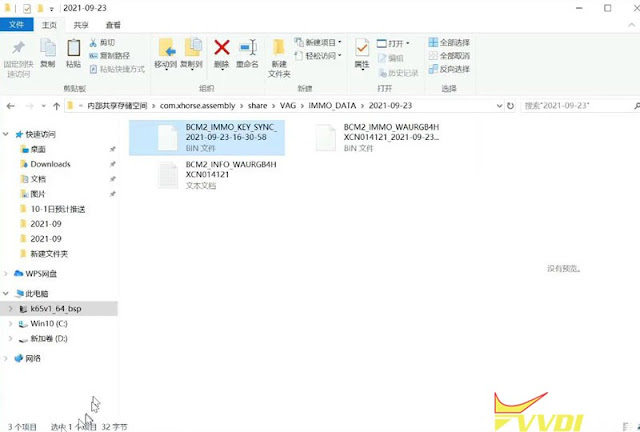
Method 2. Transfer Data via Xhorse Cloud Storage
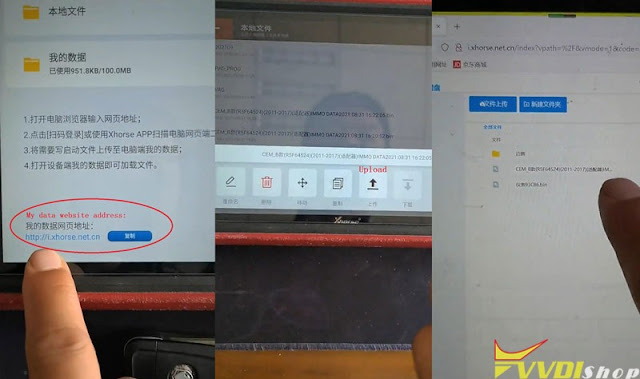
- Follow the path to upload data file on Key Tool Plus: Prog >> Data edit >> Local file;
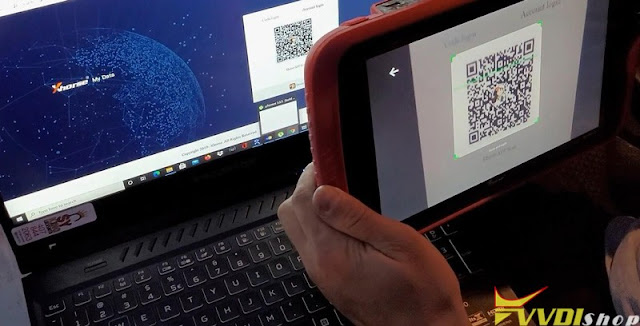
- Check my data website address on the Pad ( i.xhorse.com), press “Scan code to login”;
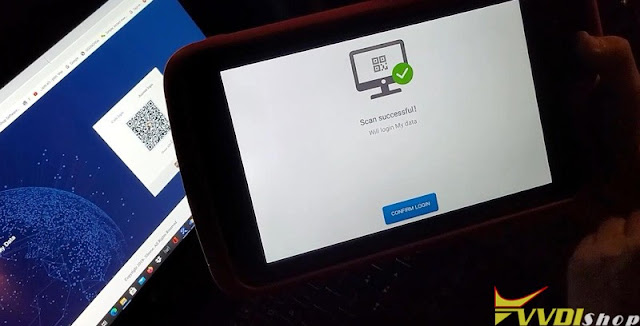
- Scan the QR code on the address, press “Confirm login” to log in.
Now you can upload data from KTP to PC or transfer data from PC to key tool plus.
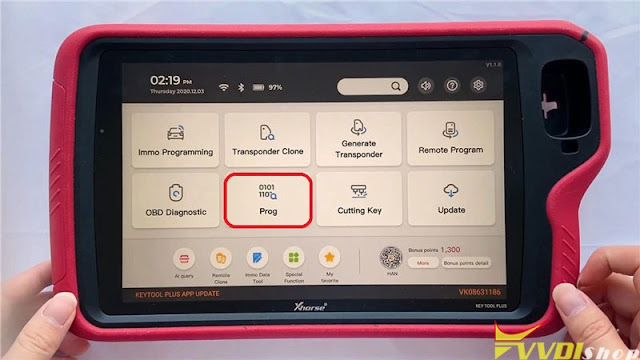
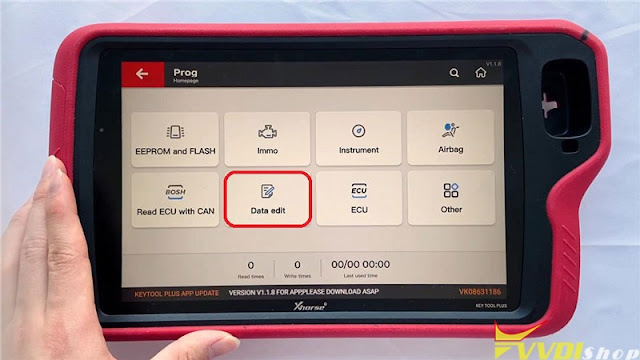

Hope it helps.